![Untitled design (1)-4.png]](https://info.regoteam.com/hs-fs/hubfs/Untitled%20design%20(1)-4.png?height=40&name=Untitled%20design%20(1)-4.png)
Pre-Requisites
The HubSpot task "Update Deal in LoneWolf" is the trigger for everything in this SOP. Before proceeding, confirm the following are complete:
- Deal paperwork received via deal submission
- Dates and signatures verified; documents saved to the drive
- HubSpot ticket updated to In Progress with appropriate dropdowns selected
- All preceding HubSpot tasks completed — "Update Deal in LoneWolf" should be the active task before opening LoneWolf
Step-by-Step Instructions
1. Log Into LoneWolf
- Open the LoneWolf program from the desktop
- Enter your user-specific password
- On the next screen, enter your Username and Password → click OK
2. Open Trades
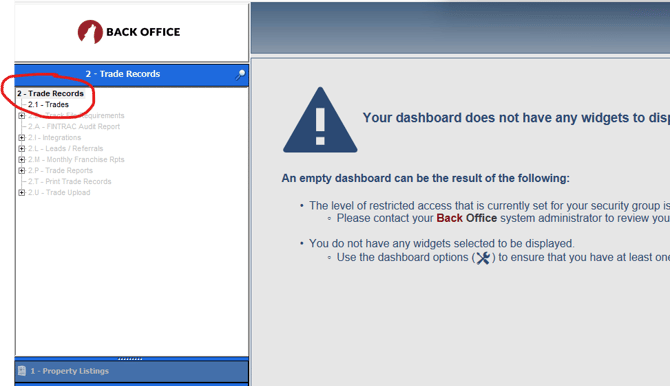
- In the left menu, click 2.1 – Trades
- At the bottom center of the screen, click Quick Add
3. Create the Trade Record
- A prompt will ask: "Is this new trade from a listing?"
- Selling side → Select No (opens a blank record)
- Listing side → Select Yes → Search for the listing address → Select it → Click OK (opens a pre-populated record)
- Using the Transaction paperwork, fill in the following fields:
|
Field |
Source |
|
Offer Date |
Date at the top of the APS and/or ATL |
|
Close Date |
Completion / Possession date |
|
Type & Class |
Offer paperwork |
|
Seller First & Last Name |
Offer paperwork |
|
Buyer First & Last Name |
Offer paperwork |
|
Firm Deal (Yes/No) |
Offer paperwork |
|
Commission |
COOP and/or Listing Agreement - If we are on listing side, both listing and coop commission need to be entered |
- Click OK → You will be brought to the full deal screen with 3 tabs: Key Info, People, and Outside Brokers (Ignore this last tab for now)
4. Key Info Tab
- Review and confirm the following are accurate:
- Offer date, firm date, and close date
- Price, type, classification, and address
- Note: If the deal is firm, the firm date auto-populates. If conditional, inputting conditions in the next step will adjust the firm date automatically.
- Near the bottom of the Key Info tab → Under Conditions, click Add
- Type in the condition or select from the dropdown
- Enter the date by which the condition must be fulfilled per the offer paperwork Schedule A/B
- Click File Requirements (beside Conditions)
- Review all paperwork received
- Check off only what has been received
- If any paperwork is missing → email the agent listing what still needs to be submitted
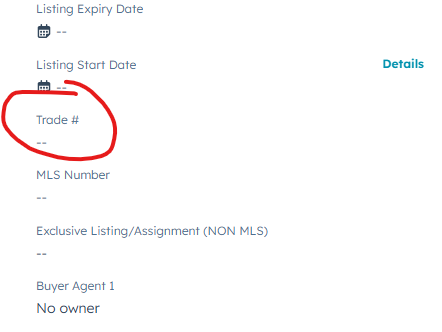
- Locate the "Add Trade # to HubSpot" checkbox
- Copy the Trade # from the top of the record
- Paste it in front of the deal folder name in the Google drive
- Also add it to the deal in HubSpot under Trade Number (left side, midway down)
- Check off this task once complete
5. People Tab
- If there are additional Buyers or Sellers:
- Click Add → Select the appropriate side (Buyer/Seller) → Enter first and last name
- For resale deals — complete FINTRAC for our side's clients:
- Confirm FINTRAC documents are on file
- Fill in: Birth Date, ID #, ID Expiry, Type of ID, Place of Issue, Occupation
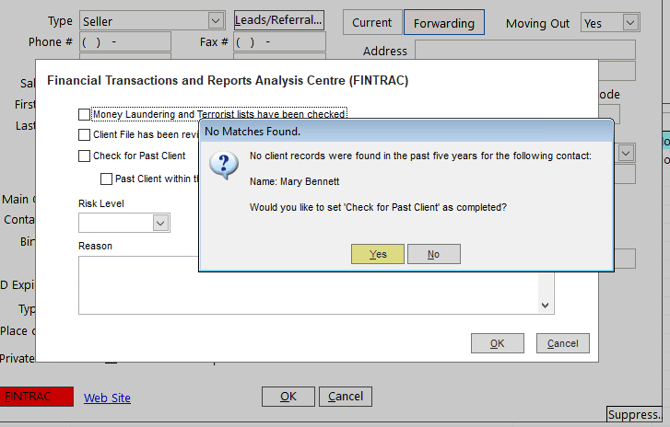
- Select the FINTRAC Required button → Click the FINTRAC button
- If prompted about past client check → Click Yes
- Open the Consolidated Canadian Autonomous Sanctions List and confirm the client is not listed
- If found on the list → Notify a manager immediately
- If not found → Check off all boxes, set risk level to Low → Click OK (box turns green) → Click OK again
- If FINTRAC paperwork has not yet been submitted: Leave this section incomplete and return to update once the agent submits it.
6. Finalize & Save
- Review all deal information one final time for accuracy
- Click Store (bottom left) to save the record
7. Wrap Up in HubSpot
- Return to HubSpot and complete any remaining tasks
- Continue tracking missing paperwork — return to the deal in LoneWolf to check off documents in File Requirements as they are received, until all paperwork is fully submitted
- Mark the "Update Deal in LoneWolf" task as complete in HubSpot once deal has been added and stored in LoneWolf
Quick Reference – Key Reminders
|
Item |
Reminder |
|
Offer Date |
Top of the offer paperwork - not the acceptance date |
|
Close Date |
Completion / Possession date |
|
Firm Date |
If the offer is firm, the firm date is the date signed under the Confirmation of Acceptance. If conditional, the firm date is adjusted to the date all conditions are fulfilled. |
|
Trade # |
Must be added to drive folder name AND HubSpot |
|
FINTRAC |
Required for resale deals - our side's clients only. If client is Self Represented we also need to add FINTRAC |
|
Sanctions Check |
Must be completed before marking FINTRAC green |
|
Missing Docs |
Email agent; return to File Requirements when received |